FAQ - Frequently Asked Questions
-
How do I view zipped product files on iPad/iPhone and other mobile devices?
If you do not know how to download and open a zip file on your mobile device we have the following suggestions:
- Install an app on your device that can unzip files such as Kpressor, Zipped, ...
- Or download the zip file to your desktop/laptop, unzip there, and then sync the unzipped files to your mobile device.
- Or use the mobile login (see FAQ 10). From that login you can directly step into zipped files.
-
How do I checkout and pay for an order?
First go to your cart and make sure you do have all the products you want to purchase. Remove and/or add any products to adjust your cart as you please. Then click on the 'Pay' button. There is one large pay-button at the bottom of the shopping cart and one smaller one at the top right of the webpage.
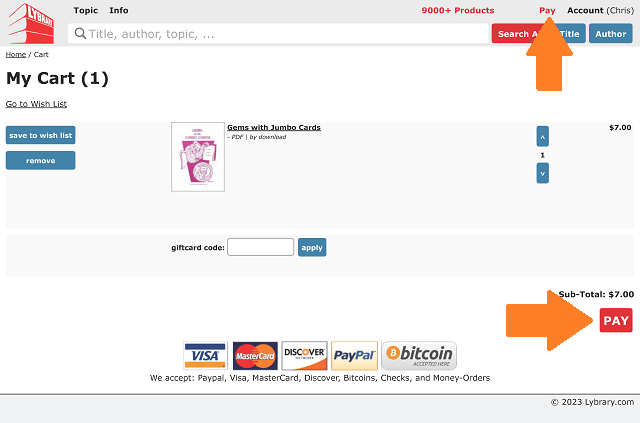
If you do have a product in the cart that needs to be mailed the next page will allow you to select shipping options. In most cases you will have only download products. You will then immediately get to the payment page. On the payment page you first need to select how you would like to pay.
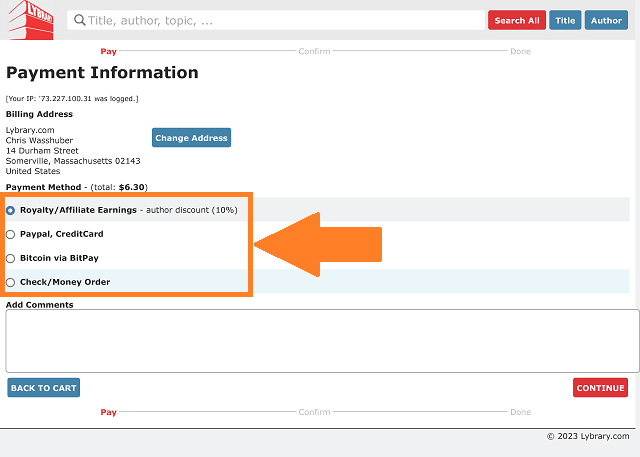
For most this will either be with Paypal or Credit Card, therefore select the 'Paypal, Credit Card' option. This will expand the selection and you will see a choice for Credit Cards and another choice for Paypal. (Make sure Javascript has been enabled. If Javascript is not turned on this expansion does not happen.) Click on which one you would like to use.
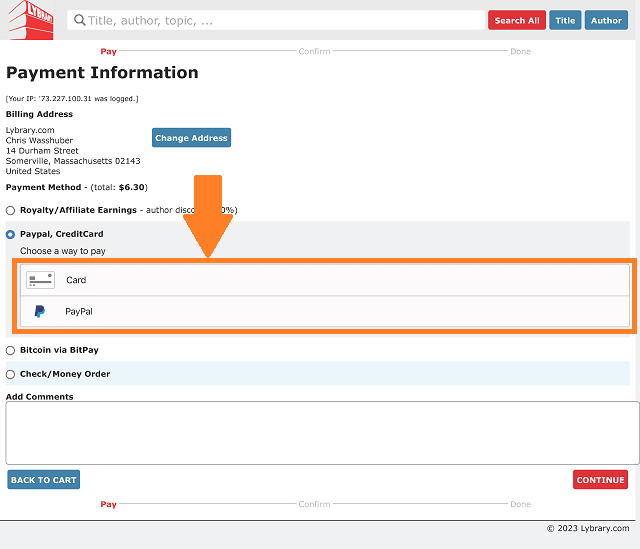
If you choose Paypal you will see a yellow Paypal button appear. Click this yellow Paypal button and you will get to the login for your Paypal account.
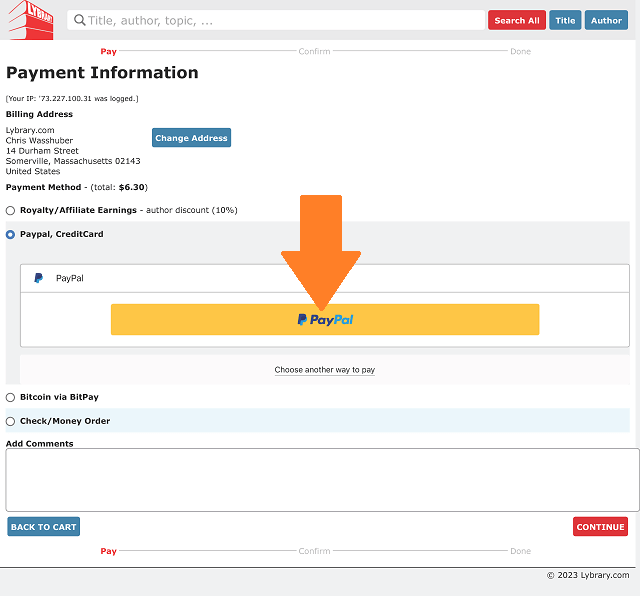
Once you return from Paypal and are back at the Lybrary.com website continue your checkout to the end until you have confirmed your order.
-
Where are my download links? (and other download problems)
Please note that download links may in some cases not immediately become active after you make a purchase. Sometimes payment processors take time to notify us that a payment has successfully taken place. All these notifications run over the Internet which has its local outages, bottlenecks and traffic jams. On your end it looks like payment has been rendered but our system has not yet been informed of it. A big website like Lybrary.com also needs periodically maintenance which can temporarily inactivate certain parts of the website including downloads. Generally speaking downloads will be available immediately but on occasion it can take some time. There is nothing to worry. A bit of patience resolves the issue in almost all cases. If after 24 hours you still cannot download then please contact us.
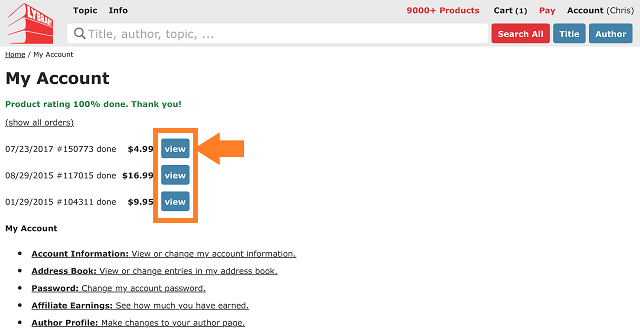
To download your files, login to your Lybrary.com account. At the very top next to your order click on the "view" button on the right to view your order.
When you view your order the underlined product titles are your download links.
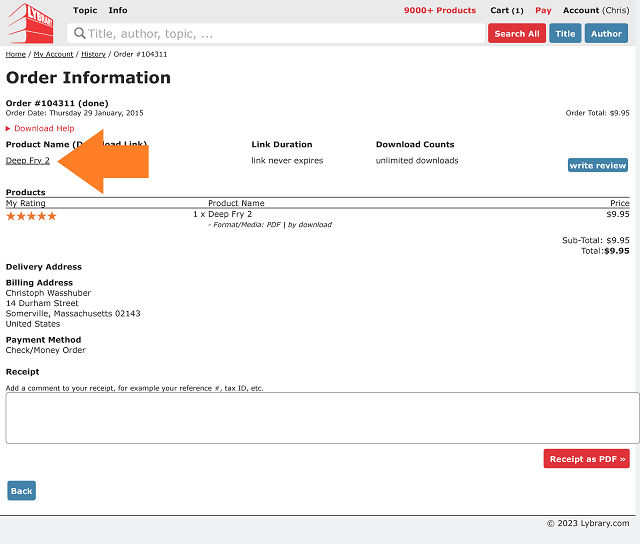
If a product has more than one file to download, you can find these additional download links below the main download link where it says 'additional files'.

You can also find all your download links in alphabetical order on the digital-shelf. The digital-shelf offers additional download links from two download servers, one located in the US, the other in the EU. Despite where you are physically located, one or the other may work better for you. Try them both if you have download problems.
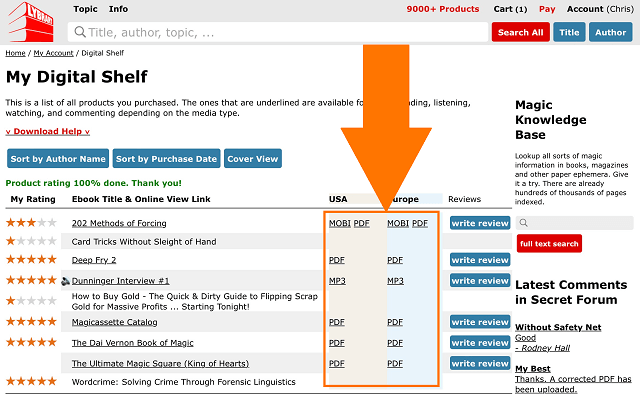
If clicking on the download link does not seem to work (screen stays blank or black for a very long time) you can also right-click on the download link and then select 'save as', 'save target as' or 'save link as'. [For Mac users: You can also try to ALT-mouse-click which should automatically save the file to your hard disc, or CTRL-mouse-click which will open a context menu where you can select "Download Linked File As...".]
-
Login problems
If you login and then are immediately presented with a fresh empty login page without any error message, please try the following: Open a fresh incognito browser window (in Safari it is called private browsing), navigate to the Lybrary.com website, go to the login page, and login. This should resolve your login issues.
If you forgot your password or somehow cannot login to your Lybrary account here are some recommendations:
- Click the eye-symbol in the password entry box and check if the spelling of your password is correct. This is by far the most common problem when login fails.
- Make sure you are using the correct email address to login. If you use different email addresses this may be the issue. Sometimes customers misspell their email address when registering the account and are then not able to log back in. In this case you will have to contact us.
- If none of the above fixed your issues, we recommend to first try to reset your password. Request a password reset link. This reset link will be emailed to you. (You can do that from the login page. Follow the 'Forgot your password?' link.)
Some users do not receive the password reset email. If that happens to you check your Junk and Spam folders. If the email is not there then whitelist the email address wasshuber@lybrary.com, and request a new reset link. (All email service providers have some way to whitelist an email address. Some call it Safe Senders list. On old MSN.COM accounts it is called "Add to VIP list". In AOL you have to add wasshuber@lybrary.com to your contacts. It is best to search online for instructions. After whitelisting you sometimes have to wait a day before the change takes affect. Then request a new password reset link. Remember the link is only active for 30 minutes. Make sure when you request it to wait for its arrival to click on the link and change your password.)
If you did receive the password reset link email, clicked on the link, set a new password, and still can't login with your new password then start an incognito browser window (in Safari it is called private browsing), navigate to Lybrary.com, and try to login again. If you have a different browser available on your system, try to login with a different browser.
-
How to create a custom receipt or invoice as a downloadable PDF?
Sometimes our customers need an order receipt with particular information on it. This could be necessary for tax purposes, or to receive a reimbursement from your employer, etc. You can create such a custom receipt in your Lybrary.com account. Login and view the order. Scroll all the way down. There under the heading 'Receipt' you will see an entry box. Enter in this box all the necessary information you need on the receipt, then click on the red button that says 'Receipt as PDF'. This will create a PDF receipt that you can print or download.
-
Viewing PDFs on Mac
Some of our PDFs need AcrobatReader to display correctly on a Mac. The Mac built in PDF viewer can have problems with larger PDFs. I don't know what upsets the native Mac PDF viewer. This happens for example for Orson Welles: The Man Who Was Magic.
-
What is the difference of the various formats PDF, PDF_facsimile, ...?
We support PDF and EPUB ebook formats. Most of our ebooks are PDF. PDF ebooks are typically displayed with AcrobatReader, a free PDF reader provided by Adobe, or a number of other PDF viewers.
- PDF: This is an unprotected unencrypted PDF. We prefer this format because it gives you the largest amount of flexibility. You can print these ebooks and you can back them up as often as you wish. Please do not abuse this freedom to make copies for your friends or worse, sell these copies.
- PDF_facsimile: This is an unprotected unencrypted PDF, like the PDF format above, but it was created differently. A PDF_facsimile ebook is a scan (image) of each page of the original book plus searchable text invisible behind these page images. The ebook preserves the look of the original book (typically an old out of print book or journal) but still allows you to perform a full text search. We use this format primarily for old journals to preserve some of their charm. The resulting files can get quite large.
- EPUB: This is an ebook format. Essentially it is HTML compressed in a zip file. While it is a fairly popular and supported format we and most our customers prefer PDF.
- JPEG: This is an image format. Very few of our products are purely a collection of JPEGs.
- MP3: This is an audio format you can play back on your computer, your iPod or any other MP3 player.
- MP4: This is a video format that has become a very popular standard and it is supported by pretty much all platforms.
These ebook formats can sometimes come in bundles as in PDF & EPUB. This means that you will get both a PDF version and a EPUB version of the same ebook. The ebook format is followed by either 'by download' or 'on disc', the former indicating that you download these ebooks and the latter that you will receive a disc with the ebook on it. -
How to opt-in/out from our newsletters?
The best way to stay informed and receive special offers and other valuable information first hand is to subscribe to our newsletters.
We publish two newsletters: a weekly newsletter for magicians, and a newsletter for miniTesla (electronics) that appears infrequently, typically once every couple of months.
When you create a customer account, you will have the chance to opt-in to one or both of these newsletters. After the initial opt-in during registration, you manage your newsletter subscriptions from your account page. Login, and find the link to newsletters. On the newsletters page you can, with one-click, opt-in or opt-out from our newsletters.
-
How to update my account email address?
To change your account email, please login to your Lybrary account. If you are not landing on the account page click the "Account" button on the upper right corner.
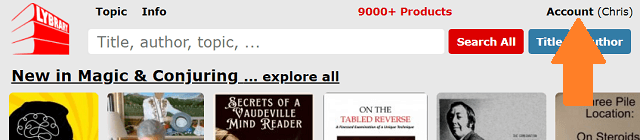
Then click on "Account Information"

Type in your new email address in the email entry box. And finally click on the red "Save & Continue" button in the lower right corner of the page.

-
How to login from an iPhone, iPad and other mobile devices, and how to install an app
First make sure you have Javascript turned on in your iPhone's Safari webbrowser. (Settings/Safari/Javascript needs to be on.) Browse with Safari web browser from your iPhone to
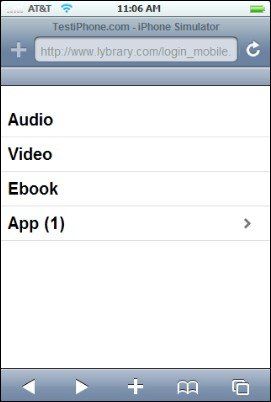
https://www.lybrary.com/, or if you want your login (your email address) already pre-populated then uselogin_mobile.php https://www.lybrary.com/.login_mobile.php? login=your_email_address Once you are logged into your Lybrary account with your iPhone you can install any app you have bought. You will see the number of apps bought in the brackets next to "App". Below you see an example of a customer with one iPhone app. Click on "App" and you will get a list of your apps. In this case here the customer has one app named "Dracula Ebook Test".
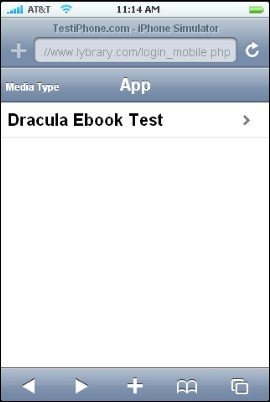
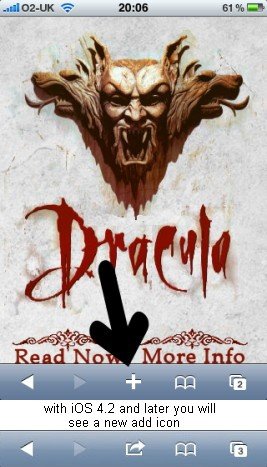
Click on "Dracula Ebook Test" to install it. You will see the title screen of the app (after some loading time) shown on the left below. Here we need you to press the "+" as shown by the arrow. For iOS 4.2 and later the plus-icon has been replaced with this
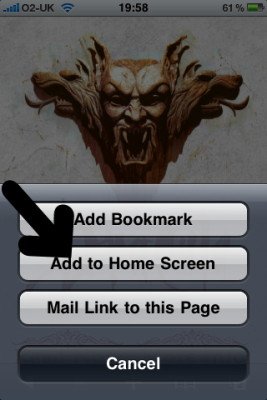
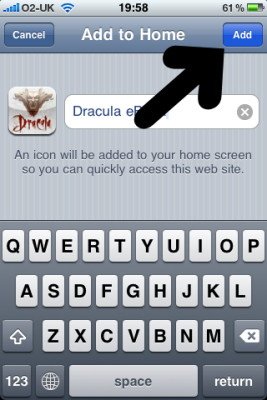
 . When you press this you will be given three options. We would like you to select the "Add to Home Screen" option as shown below in the center. The next screen will ask you to name the app. There is typically some preset but you can give it any name you like. Then press the "ADD" button as indicated below in the right screen shot.
-
What payment options do you provide?
- Credit Cards (Visa, Master Card, AmEx, Discover)
- Paypal
- GooglePay
- Cryptocurrencies
- Bitcoin (BTC: on-chain, off-chain with Coinbase, and Lightning)
- Bitcoin Cash (BCH)
- Ethereum (ETH)
- Wrapped Bitcoin (WBTC)
- Dogecoin (DOGE)
- Litecoin (LTC)
- Shiba Inu Coin (SHIB)
- Apecoin (APE)
- 5 USD-pegged stablecoins (GUSD, USDC, USDP, DAI, and BUSD)
- Euro Coin (EUROC) a Euro-Backed Stablecoin
- Polygon (MATIC)
- Checks / Money-orders: There will be a delay in the processing of your order. We have to wait until your check arrives and until the funds clear and then we can process your order. This can take up to 10 business days from the time we receive your check.
- Cash: Please only send USD. We are not responsible for a lost envelope or package. We have over the years received a few cash payments and everything went fine, but it is a significant risk to send cash and you the customer will have to bear that risk.
-
How to view videos and download DVDs on iPad and iPhone?
Besides downloading your video and DVD purchases to your computer you can also view them in a streaming version using your iPad or iPhone. You do this by logging into your 'mobile digital shelf'. Browse with Safari web browser from your iPad or iPhone to
https://www.lybrary.com/login_mobile.php, or if you want your login (your email address) already pre-populated then usehttps://www.lybrary.com/login_mobile.php?login=your_email_address. (I suggest you add this website to your home screen, or bookmark it so that you can find it quickly.) Use the same login credentials as you use for your Lybrary.com account.Once logged in you will see four categories: Audio, Video, Ebook, App. Your purchases at Lybrary.com are grouped into these four groups. If you wanted to view one of the download DVDs you have purchased you would click on the Video category. This will show you an alphabetical list of all your video purchases. You then select the title you want to view and it will start playing. If it is a title that consists of several clips you will get to a list of clips where you can choose the one you want to view. Click on it and it will start playing on your iPad or iPhone.
-
How do I sell my ebook or video on Lybrary.com?
The first step is to send us your product so that we can decide if we want to offer it. (You will find an email address on our contact us page.) This might sound a bit pretentious but we are not like other retailers who list just any garbage they receive in their slush pile of download products. We accept ebooks and videos in any subject category but are primarily interested in magic (sleight-of-hand, illusions, mentalism, ...), gambling (poker, blackjack, roulette, ...) and games (chess, bridge, ...).
Should we like your product we will get back to you with an offer that depends on the level of exclusivity you are willing to extend to us. If you are willing to sell your product exclusively through Lybrary.com then we can pay a higher royalty. If you want a non-exclusive retail agreement then royalties will be lower.
Royalties are paid via Paypal whenever you want without any minimums or other limitations. You can transfer outstanding royalties whenever you like with a simple press of a button. We have the only verifyable royalty system in the industry. See FAQ #18 for details. (We do not charge any fees on your royalty payments, but Paypal will charge you a fee.)
Additionally, as a royalty receiving author, you can purchase anything at Lybrary.com at a 10% discount with your earned royalties. During checkout you will see a new 'pay with royalties' payment option. For many of our authors this is a very welcome benefit.
NOTE TO MAGICIANS: Please do not send us your half baked ideas, tricks you have not performed, tested, researched, and written up in proper and understandable English. Having been in this business for more than two decades I have seen it all, the good, the bad, and the ugly. Just because you have performed magic for two or three years, and come up with some trick, does not mean you should offer it for sale. Perhaps it is better to submit it to a magazine for publication, or release it on a blog or forum for free to get valuable feedback from the community. It is also often more appropriate to collect several tricks into one release rather than release every brain fart as an individual for sale item. Provide value to your customers. One half baked trick for $10 is not good value. Think about how you would feel buying such a trick.
First you should perform your trick for a good while. This allows you to find out what parts you need to improve on, and if it is a trick spectators like. Then you need to research if anything similar already exists before rushing to release it. This means searching and reading the literature. Then you need to write it up in proper English. If you are not a native speaker use writing tools to help you (ex. Grammarly), and then have at least one native speaker read it and make corrections. Share your inspirations, your sources, your influences. We all are standing on the shoulders of the magicians who came before us. Rarely is an idea or method entirely new. It is your responsibility to find out if your idea is new or not. Spend time to find out if anything similar exists. Our Magic Knowledge Base can be very helpful in this regard. If you do all these things you will create a product you can be proud of.
-
Do you have an affiliate program?
Yes, we do. Details can be found in your Lybrary.com account under 'Affiliate Earnings', which is the last link under the 'My Account' subheading in your Lybrary customer account. Briefly, every customer is by default enabled to be an affiliate. No separate registration beside a customer account registration is necessary. Affiliate earnings can either be cashed out via Paypal or can be used to purchase anything at Lybrary.com at a 10% discount.
-
How do I claim and edit my author page?
You claim an author page by:
- Log into your Lybrary.com account.
- Navigate to your author page. You can do this for example by typing your name into the search box on the top of any page on Lybrary.com and press on the blue Author search button. Alternatively you can go to a product page of one of your ebooks and then click on the underlined author name.
- On your author page you will find a blue "claim this author profile" button. Click it.
(If you do not have a Lybrary customer account go to the login page and look for the blue "Create Account" button.) You can only claim one author profile per customer account. Once you claimed one you cannot unclaim it. If you made an error you will need to contact us.
Once you have claimed an author page you can edit it and submit your changes. You can edit your author page from two places. Either navigate again to your author page, while logged into your Lybrary account, and look for the blue "edit author profile" button. Or while you are on your account page look for the "Author Profile" link and click it. Make your changes and press the red "Save & Continue" button. This will submit your changes to us. The changes will not immediately go live. We will review them, make any necessary corrections, and then put your page online. This review process will take some time. We aim to have it processed under one week, but sometimes it can take longer.
-
What is the Secret Forum?
Each product has its own online discussion forum, which is only accessible to customers who have purchased the product. The public does not have access. That is why we call it secret. Since only people who have bought the product have access to it, one can freely talk about the contents of the ebook or video, including method, improvements, etc. It is the perfect place to ask questions if anything is unclear, and share your own improvements and variations. Other customers, our staff, or even the author may answer your questions or comment on your suggestions.
You access the Secret Forum via your digital shelf. Login to your Lybrary account and go to your digital shelf. There you have two entry ways. Look on the right side. You will see a search box for the Magic Knowledge Base, and below it you will see up to 10 of the latest secret comments to products you have access to. (There may be no comments depending on the products you have purchased. Or if you are using a screen that is too small, like a smartphone, you may not see it either.) Clicking one of these comments will get you directly to the Secret Forum. Alternatively, you can click one of the underlined product titles.
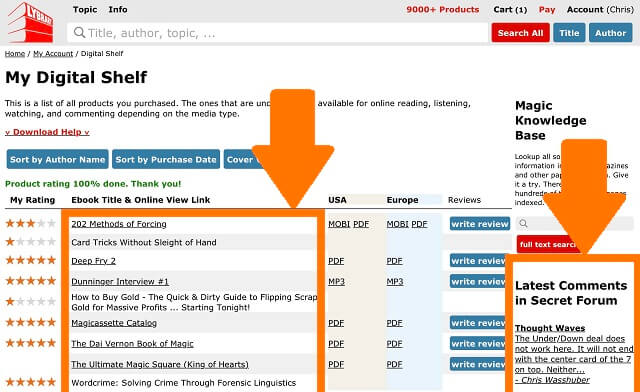
And then look in the upper right corner for the toggle to open the Secret Forum.

You will then see the sidepanel slightly increase its width, and change to a dark background color. It will look something like the screenshot below

-
How to view the old Lybrary.com HTML ebooks?
You will need to use the FireFox browser. Start it and type into the address bar: about:config. Then hit enter key. Then click on 'Accept the Risk and Continue'. Then type privacy.file_unique_origin and set it to false. Then type security.fileuri.strict_origin_policy and also set it to false. Then close FireFox and start it new so that the setting takes affect. Now open any of the old HTML ebook files with the browser. You do this by clicking on the three bars icon in the upper right corner of the browser. Then look for the "Open File ..." menu item and select the HTML file you want to view.
-
How to verify the royalty system?
Authors and publishers who sell their digital products on an online platform like Lybrary.com might ask themselves how they can assure that they will receive royalties for all sales of their products? How can they be certain that the accounting is accurate? Here at Lybrary.com we have built a royalty system that every author and publisher selling with us can easily verify anytime and as often as they wish.
Here is how it works. Login to your Lybrary account and write down the sales numbers of your products. To make this easier you could take a screenshot or download the latest sales report. Then ask a friend or colleague to purchase one of your products. Once he has paid for the order go back to your sales numbers and check that you now have one more sale for the product your friend has bought. If the sales number went up by one everything is accurate. Since we would not know who or when somebody makes a verification purchase you can be sure that the system registers all sales correctly.
It allows you to independently verify the accuracy of the royalty system. It is a bit like drawing a random sample from a production line for quality control. To the best of our knowledge, this is the only such verifiable royalty system in our industry. Perhaps this is the reason why we are in business since 1999 and why so many authors and publishers trust us with their sales.
-
How to View without Downloading (Digital Shelf)
The digital shelf offers a number of features. It is a place where you can see and sort through all your purchases. It is a place where you can download your digital products. It is also the place from where you can access online viewers for PDF and videos. This means you can access your purchases without having to explicitely download them before viewing. This can be helpful for remote access while traveling or for members of the Armed Forces who sometimes are not allowed to download anything. The digital shelf is a cloud storage for all of your digital purchases.
- Login to your Lybrary.com account, and go to the account page.
- Go to the digital shelf.
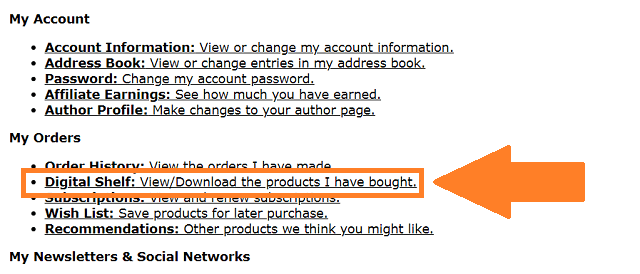
- On the digital shelf click the underlined product title. This will either open an online PDF viewer or allow you to watch the video directly in the browser.

- Login to your Lybrary.com account, and go to the account page.
If there are any unresolved questions or any comments you want to share, please contact us.